Unfold PDF Productivity
It is launch day for iPhone Duo and the start of a new chapter for productivity on a phone. The aspect ratio of the iPhone Duo makes it ideal for working with PDF documents and Highlights has been updated to take advantage of the space edge-to-edge. Unfold the iPhone Duo and the document opens like a book going from single-page to two-page layout automatically. Or use the additional screen real estate to compare two documents side-by-side. Download Highlights 2026.3 to try it out.
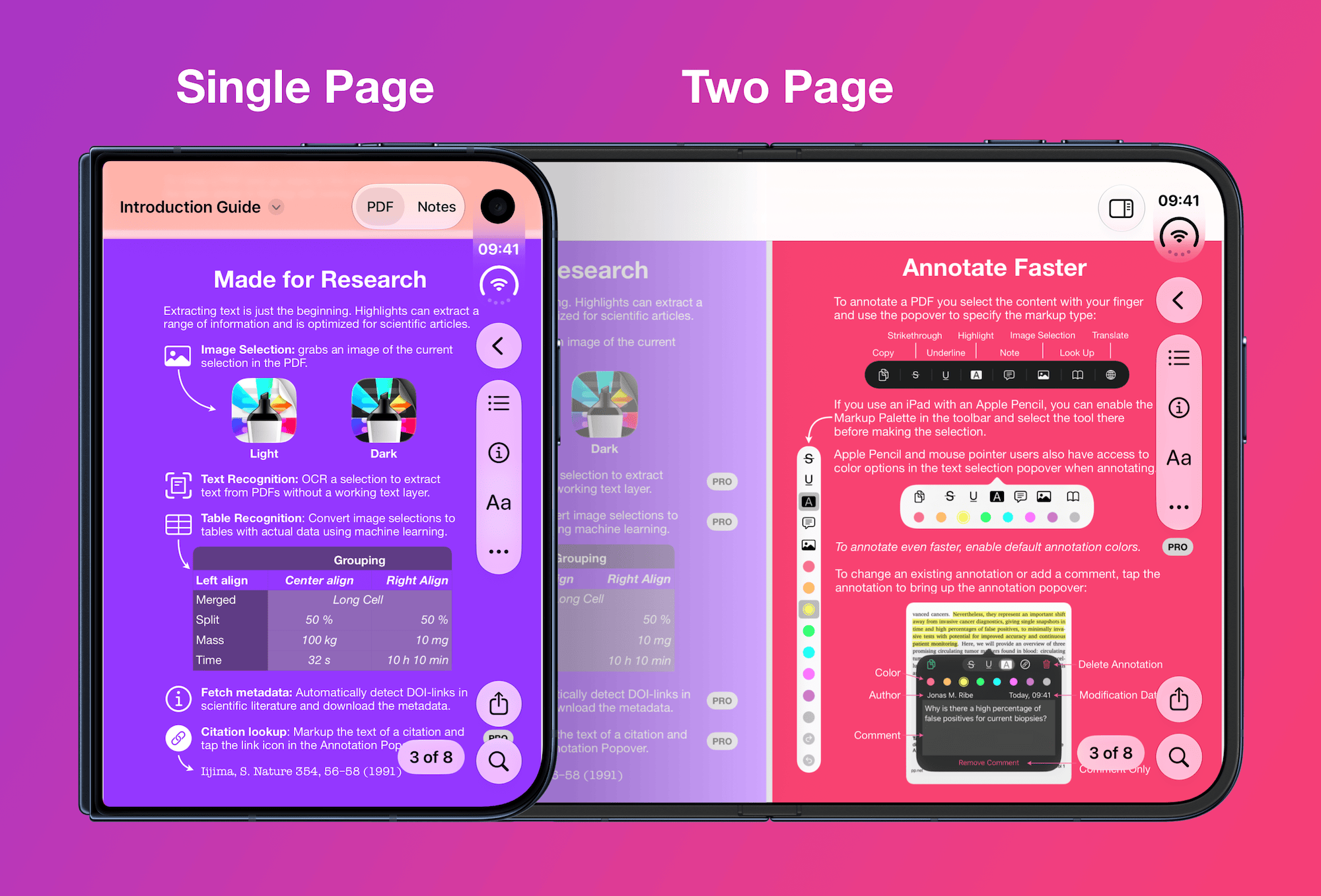
The iPhone Duo opens new possibilities for Highlights and PDF productivity on a phone. The large inner screen combined with Apple Pencil support (coming in a later update) brings iPad-level productivity to a pocket-sized device. Add the fact that both the inner and outer displays have aspect ratios close to paper sizes, making it ideal for PDF documents.
To take full advantage of this space, Highlights displays PDF documents edge-to-edge in both the folded and unfolded state. Toolbar buttons float above the content in a vertical bar, making them easy to reach in any configuration. If the buttons cover up the content or you simply want a distraction-free reading environment, just tap the PDF to hide the toolbar buttons. Tap again to bring them back.
Multiple Windows
The iPhone Duo brings features previously only available on iPad to iPhone, including support for multiple windows and soon Apple Pencil (on both the inner and outer screen). Highlights is built around these features on iPad and ready to support them on iPhone Duo, which means you can work on multiple PDFs, compare two documents side-by-side on the inner display or tap and hold on a PDF in the document browser and select “Open in New Window” to open it in a separate window.

Auto Page Layout
The new Auto page layout mode where unfolding will automatically switch from single to two-page layout is enabled by default on iPhone Duo. It provides a book-like experience, but it is more than an intuitive skeuomorphic design, it is designed to utilize the available space and provide consistency. When the app is in portrait orientation or the available space is limited, it will keep the single page layout for better readability.
The Auto page layout mode can be enabled on iPads and large-screen iPhones as well, but is off by default. When enabled, the page layout will change when rotating the device from portrait to landscape or resizing windows. To enable it go to More (…) > Settings > Page Layout and select Auto.
Get the updated Highlights from the App Store to try out the new features.