How Does the Apple Pencil Work?
The Apple Pencil is a high-precision stylus made for the iPad and iPhone Duo. The low latency and palm rejection combined with tilt and pressure sensitivity make it great for drawing, note-taking and marking up PDFs. It might look like a white plastic pencil, but the addition of advanced features like hover, double-tap and squeeze gestures makes it clear that there is a lot going on inside. Here we will dive into how Apple Pencils actually work and how the hardware enables the different features.
Multi-touch Screens
Apple popularized the modern multi-touch display with the introduction of the iPhone. These projected capacitive touch screens create an electrostatic field that is responsive to the electrical properties of skin. A sensor array in or on top of the screen is used to acquire the location of the touch and differentiate between multiple fingers. It is made from an optically transparent, but conductive material like indium tin oxide (ITO). The sensor array consists of driving and sensing electrodes separated by an insulating layer usually organized in a row and column pattern:
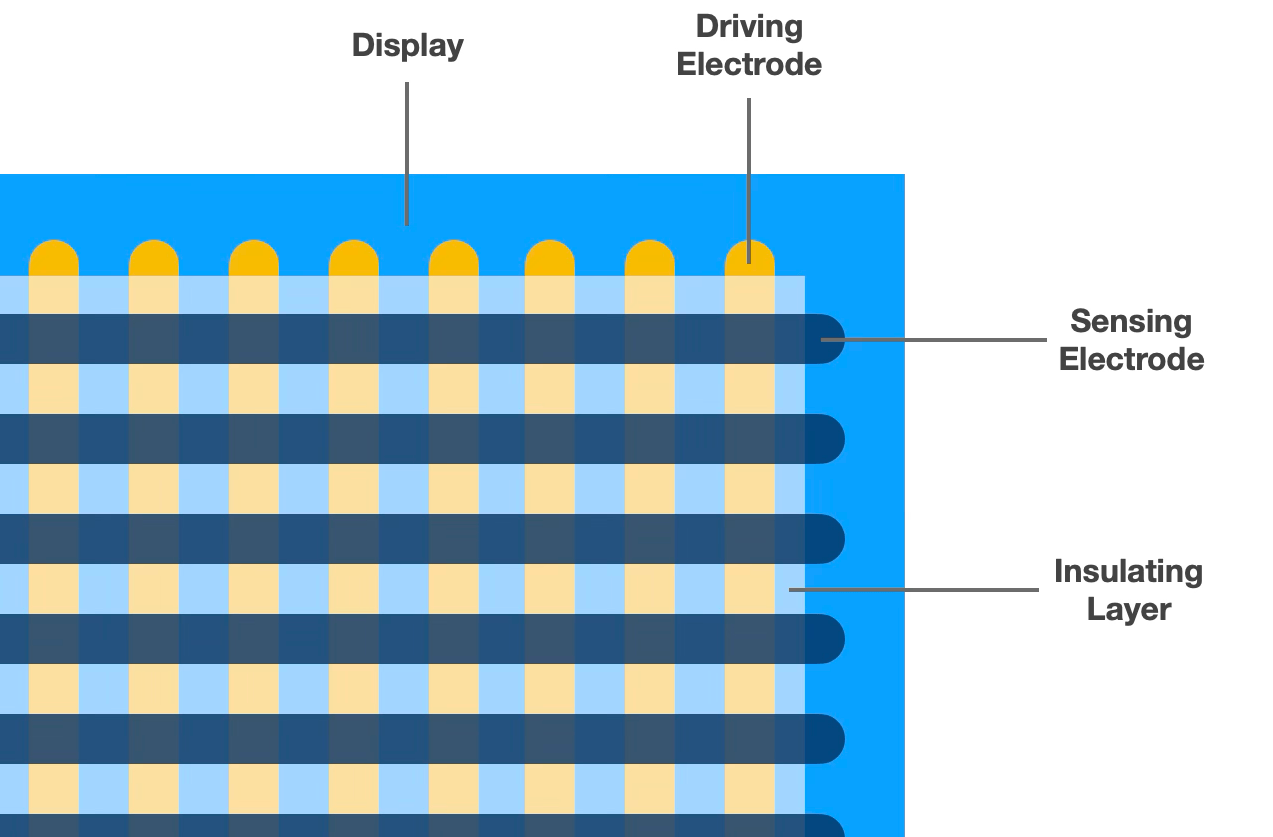
When the touch screen is on, a voltage is applied to the driving electrodes in the sensor array and the nodes where they intersect the sensing lines form capacitors due to mutual capacitance. Since each intersection represents a unique pair of electrodes the array can measure them individually and therefore be used to detect multiple touches. An insulating glass layer covers the sensor array and forms the actual touch surface, but the field lines of the capacitors extend outside this surface. When a conducting material like skin is within the field lines it changes the capacitance and therefore the voltage in the sensing line. A fingertip is larger than the resolution of the array, and a single touch event will therefore consist of multiple points. This data is processed by a touch sensing controller and turned into system events. A lot of the magic in the original iPhone was therefore how the software translated these into touch events and handled multi-finger gestures like pinch to zoom.
Capacitive vs Active Stylus
A capacitive stylus works with any multi-touch screen as it basically just extends the electrical properties of our fingers to the tip of the stylus. This is often done by making the shaft out of conductive material and connecting a soft conductive rubber tip as seen here:
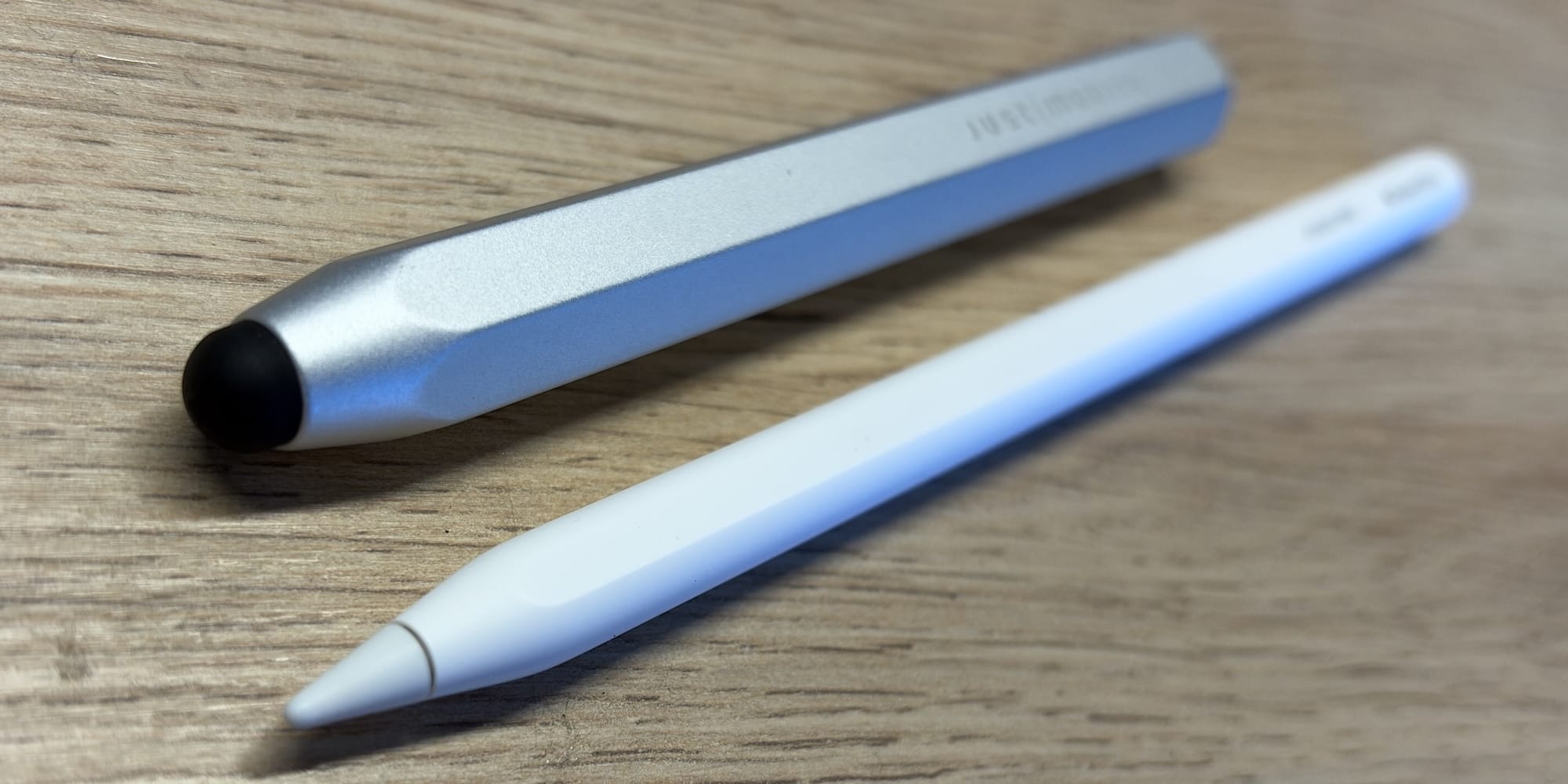
Since a capacitive stylus acts as a finger, the screen can also not differentiate it from a finger and it can therefore not offer any technical advantage, only different ergonomics.
For a multi-touch screen to differentiate between touches and stylus events, it needs an active stylus that can generate its own signal distinct from a finger. An active electrostatic stylus like the Apple Pencil is an electrical device that emits one or more weak electrical signals and needs an integrated battery to drive it. Locating the emitter in the tip of the stylus produces a much higher precision touch event than a finger and when combined with other sensor data, it creates a rich input device. It also requires a sensor array with both a high resolution and a high sampling rate to capture enough data when the stylus is moving.
Apple Pencil Introduction
The Apple Pencil was introduced alongside iPad Pro in September 2015. It used Lightning for charging and had an opinionated Jony Ive design:
The iPad Pro had a 60 Hz screen with a sampling rate for touch events of 120 Hz, but when the Apple Pencil was detected the sampling rate doubled to 240 Hz. In most apps the events were coalesced to match the refresh rate of the screen, but developers who wanted the added precision could opt-in to them. Each stylus event also contained another important piece of information: the tilt of the Apple Pencil and direction of that tilt relative to the screen (azimuth).
Tilt Detection
Once paired, the Apple Pencil emits a signal the iPad detects through what Apple calls active capacitive sensing. The tip electrode is embedded in the replaceable rubber nib of the Apple Pencil. Replacement nibs are compatible with all generations of Apple Pencil. The tip electrode has a hemispherical design that matches the nib exterior to achieve a consistent distance between the electrode surface and tip surface and therefore also a consistent capacitive coupling with the display.
To be able to detect the angle of tilt, the Apple Pencil has a separate ring electrode inset at a fixed distance from the tip electrode:
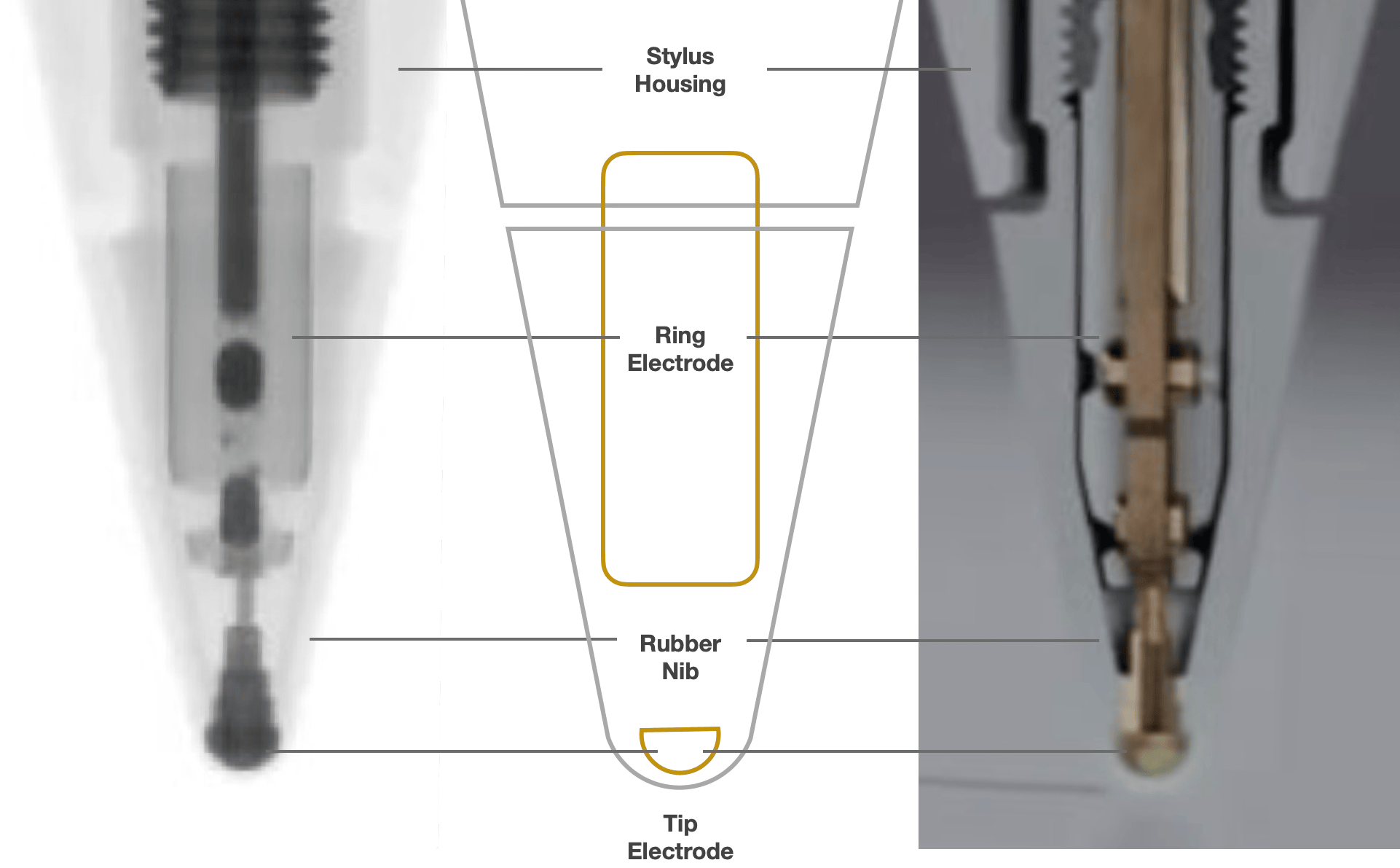
The tip and ring electrodes are actuated simultaneously, but at two distinct frequencies. The sensor array detects the position and strength of the signals from the tip and ring electrodes and sends them to the sensing controller which resolves azimuth and tilt.
Drawing apps can use tilt to create narrow lines when the pencil is upright and wide lines when flat. Any active stylus compatible with an iPad or iPhone Duo will have a similar electrode design and therefore also support tilt. If tilt stops working, replacing the nib will not help as the ring electrode is embedded in the stylus.
Pressure Sensitivity
When the iPad detects a stylus, it not only increases sampling rate, it also enables palm rejection automatically. It is not a feature of the stylus and cannot be turned off. So everything we have discussed so far is supported by any stylus compatible with an iPad or iPhone Duo, independent of brand or price. That stops here as we go into more advanced features, starting with the main differentiator: pressure sensitivity.
Most digital artists who work with styluses want pressure sensitivity: the ability to control the intensity of strokes by how much force is applied to the tip. This requires an axial force sensor and can be found in all Apple Pencils except the Apple Pencil (USB-C). When supported, the force measurement is included in the touch events. The value is not obtained by the sensor array, but over the Bluetooth connection. It is therefore first estimated and later updated if needed. Third-party styluses cannot access this API. Therefore they do not support pressure sensitivity, with some notable exceptions like the Wacom Bamboo Sketch which integrated its own SDK with individual apps and has since been discontinued.
Hardware Generations
The 2nd generation was introduced in 2018, three years after the first. It was a major redesign and is what we think of as the Apple Pencil today: a matte white pencil with a flat edge for magnetic attachment to the iPad. It replaced the Lightning plug with inductive charging coils and wireless pairing while shaving off 1 cm in length. The stylus also gained a double tap gesture, where tapping the front end of the stylus triggers a customizable action. This is enabled by a “intuitive touch surface”, which the iFixit teardown found to be a capacitive grid.
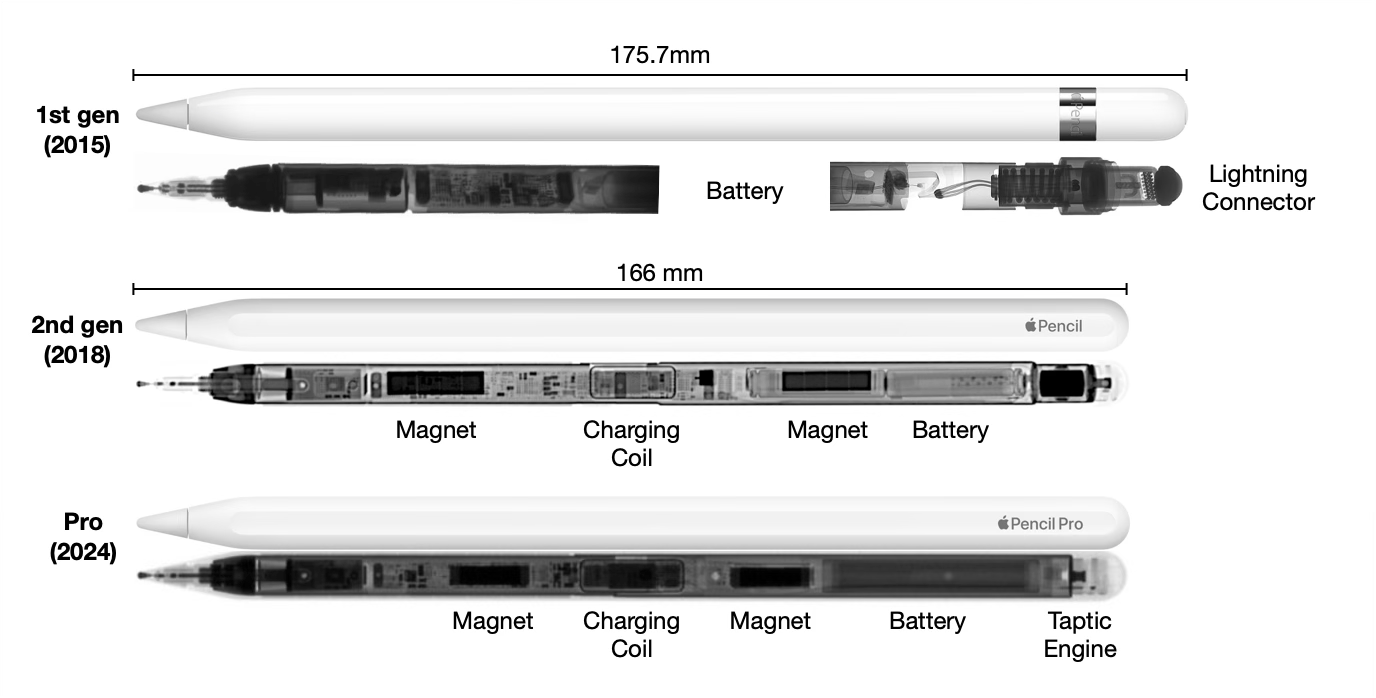
In 2023, Apple introduced the Apple Pencil (USB-C) aimed at a lower price point. The stylus removed the pressure sensitivity, double tap gesture and wireless pairing/charging, but added a USB-C port for pairing and charging hidden under a sliding cap. The magnet locations are different from the 2nd generation and were likely redesigned to account for landscape FaceTime cameras.
In 2024, Apple Pencil Pro was unveiled, the successor to the 2nd generation with a lot of new hardware under the hood. The magnets were moved to the same location as for the Apple Pencil (USB-C). A gyroscope lets the Apple Pencil Pro detect rotation around its own axis, a feature referred to as barrel roll. The capacitive grid was replaced by a pressure gauge sensor to add a new squeeze gesture on top of the double tap (which now may be supported through a fusion of sensors). The Taptic Engine at the top of the Apple Pencil produces haptic feedback when you squeeze it to make it feel like you really are squeezing it. Finally, the Apple Pencil Pro added support for Find My through a new Bluetooth 5 chip with low-power peripheral advertising modes.
Bluetooth Required
Triggering Bluetooth pairing is different for different generations. To pair the Apple Pencil (1st gen) to an iPad you must connect it via Lightning. That triggers Bluetooth pairing. You can even trigger the pairing on unsupported devices. The Apple Pencil (2nd gen) and Apple Pencil Pro must be magnetically attached to a compatible device to pair. The Apple Pencil (USB-C) must be connected via a USB-C cable for pairing and charging.
Without a Bluetooth connection Apple Pencil will not work. If you disable Bluetooth on the device, Apple Pencil disconnects and the screen stops responding to it. It is therefore likely used to turn on the electrodes of Apple Pencil and set their frequencies. Bluetooth is also used to report battery and charging status to the system (e.g. the battery widget). On supported generations it is used for pressure sensitivity, barrel roll and gestures.
Hover Previews
The Apple Pencil hover feature was introduced with the M2 iPad Pro in October 2022. It lets you preview the tool on screen before putting the tip down. Though it might seem like it, it is not a feature of the Apple Pencil. It is a feature of the active capacitive sensing capabilities of the M2 iPad Pro (plus any later iPad that supports the Apple Pencil Pro) and will therefore even work when paired with the unsupported Apple Pencil (1st gen). The M2 iPad Pro can detect the stylus tip from up to 12 mm away. A similar accessibility feature called hover text works on the older M1 iPad, but requires the tip of the stylus to be much closer (2 mm). Apple has not indicated that hover required hardware changes to the sensor array or sensing controller, but told TechCrunch that it was enabled by M2. Screen replacements for the M1 and M2 iPad Pro use the same part and it therefore seems plausible that it is based solely on increased signal processing. The 2024 iPad Mini with A17 Pro supports hover and is only faster than the M1 when it comes to single core CPU and Neural Engine performance.

Third-party Styluses
The Logitech Crayon, introduced in 2018, is a stylus made for iPad that does not require Bluetooth. It was made in collaboration with Apple and therefore based on Apple Pencil technology. It was intended for the education market and to be used with any iPad (after 2018) without pairing. Since it does not do Bluetooth, it does not support pressure sensitivity, barrel roll, gestures or battery status. It charges via Lightning or USB-C (depending on the generation) and shows its battery status via LEDs.
Since it works without pairing and supports tilt, it must be using the tip and ring electrode setup, but with a set of default frequencies that the iPad falls back to when not paired to an Apple Pencil. If an Apple Pencil is paired to an iPad, the Logitech Crayon does not work. If you unpair the Apple Pencil or disable Bluetooth, the Logitech Crayon starts working. Moreover, since all Logitech Crayons use the same frequencies, the iPad cannot differentiate between two Logitech Crayons and will just pick the first to register.
Since the introduction of the Logitech Crayon the market has been flooded with Apple Pencil clones. They all work as a stylus when Bluetooth is disabled and none of them can do pressure sensitivity. Some use Bluetooth for battery status or to present as a keyboard to trigger actions. Some have magnetic attachment and charging. Some can do Find My. These Apple Pencil clones might look more like an Apple Pencil than a Logitech Crayon, but they are most likely reverse-engineered from the latter and have had the other features tacked on.
iPhone Duo Support
The iPhone Duo was introduced in September 2026. It is the first iPhone to support the Apple Pencil. It supports only one stylus for now: the Apple Pencil (USB-C). Trust us, we tested. However, Apple has announced a new program for third-party styluses in the EU and it seems to be a fallout of the Digital Markets Act (DMA). The program includes documentation for how a stylus should be designed and integrated to work with Apple devices. It does not include support for pressure sensitivity, but the Apple Pencil (USB-C) does not support that either. It does make it clear that for a stylus to work with the iPhone Duo it should be paired via Bluetooth and let the iPhone Duo turn on and set the frequencies for the tip and ring electrodes. This explains why the iPhone Duo will not accept an unpaired stylus like the Logitech Crayon or Apple Pencil clone.
Frequently Asked Questions
- How does the Apple Pencil work?
- How does the Apple Pencil detect tilt and pressure?
- How do you charge an Apple Pencil?
- How do you connect or pair an Apple Pencil to an iPad?
- Does the Apple Pencil require Bluetooth?
- How can the Logitech Crayon work without Bluetooth?
- Why is my Logitech Crayon not working?
- How do Apple Pencil clones work?
How does the Apple Pencil work?
The Apple Pencil is an active electrostatic stylus. Its tip and separate ring electrode emit weak signals at two different frequencies, which the iPad’s touch sensor array detects to find the tip’s position and tilt. A built-in battery powers the electronics, and a Bluetooth connection is required for the Pencil to work.
How does the Apple Pencil detect tilt and pressure?
Tilt comes from the ring electrode set back from the tip: the iPad compares the tip and ring signals to resolve the angle and direction. Pressure comes from a force sensor in the Pencil and reaches the iPad over Bluetooth, not through the screen. The Apple Pencil (USB-C) has no pressure sensor but still supports tilt.
How do you charge an Apple Pencil?
The Apple Pencil Pro and 2nd gen charges inductively when magnetically attached. The Apple Pencil (USB-C) charges through the USB-C port under its sliding cap. The 1st gen charges via the Lightning plug under the removable cap.
How do you connect or pair an Apple Pencil to an iPad?
It depends on the generation. The Apple Pencil (1st gen) pairs when you connect it via Lightning. The 2nd gen and Pro pair when magnetically attached to a compatible device. The Apple Pencil (USB-C) pairs when connected with a USB-C cable. Once connected the Apple Pencil will trigger Bluetooth pairing with the device.
Does the Apple Pencil require Bluetooth?
Yes. If you turn off Bluetooth on the device, the Apple Pencil disconnects and the screen stops responding to it. Bluetooth is used to turn on the electrodes and set their frequencies, and on supported generations it also carries pressure, barrel roll, gestures and battery status.
How can the Logitech Crayon work without Bluetooth?
The iPad is listening for a set of default frequencies for the tip and ring electrodes when not paired with an Apple Pencil. The Logitech Crayon uses only these frequencies and will therefore work without pairing. An iPad supports only one stylus at the time, but it cannot differentiate between two Logitech Crayons.
Why is my Logitech Crayon not working?
If it is charged, the most likely reason is that your iPad is connected to an Apple Pencil. Unpair the Apple Pencil or turn off Bluetooth. That will revert the iPad to use the default frequencies used by the tip and ring electrodes in the Logitech Crayon.
How do Apple Pencil clones work?
Apple Pencil clones have likely reverse-engineered Logitech Crayon as they use the same default frequencies and can work without pairing. Some Apple Pencil clones also use Bluetooth pairing to report Bluetooth battery status and get shortcut actions by pretending to be a keyboard.